${item.title}
${item.title} ${item.afterBtn.text}
${item.text}
${item.title}
${item.afterBtn.text}

${articleTitle}

How to Connect Your Shopify Store to CJ?

268972 4 mins article
Date Created: Dec. 29, 2020 19:04:06 Last Edited: Jun. 23, 2026 08:03:44

Connecting your Shopify store to CJdropshipping lets you list products and automate order fulfillment directly through CJ.

Steps Overview

1
Initiating Store Authorization
 
2
Authorization Popup
 
3
Shopify App Install
 
4
Install Confirmation
 
5
CJ Account Authorization
 
6
Authorization Success
 
7
Verifying Store Connection
Step 1Initiating Store Authorization

Log in to CJdropshipping. In the left sidebar, click Apps, then click Shopify to open the store management page. If no stores are connected yet, you'll see the empty state with an Add Store button.
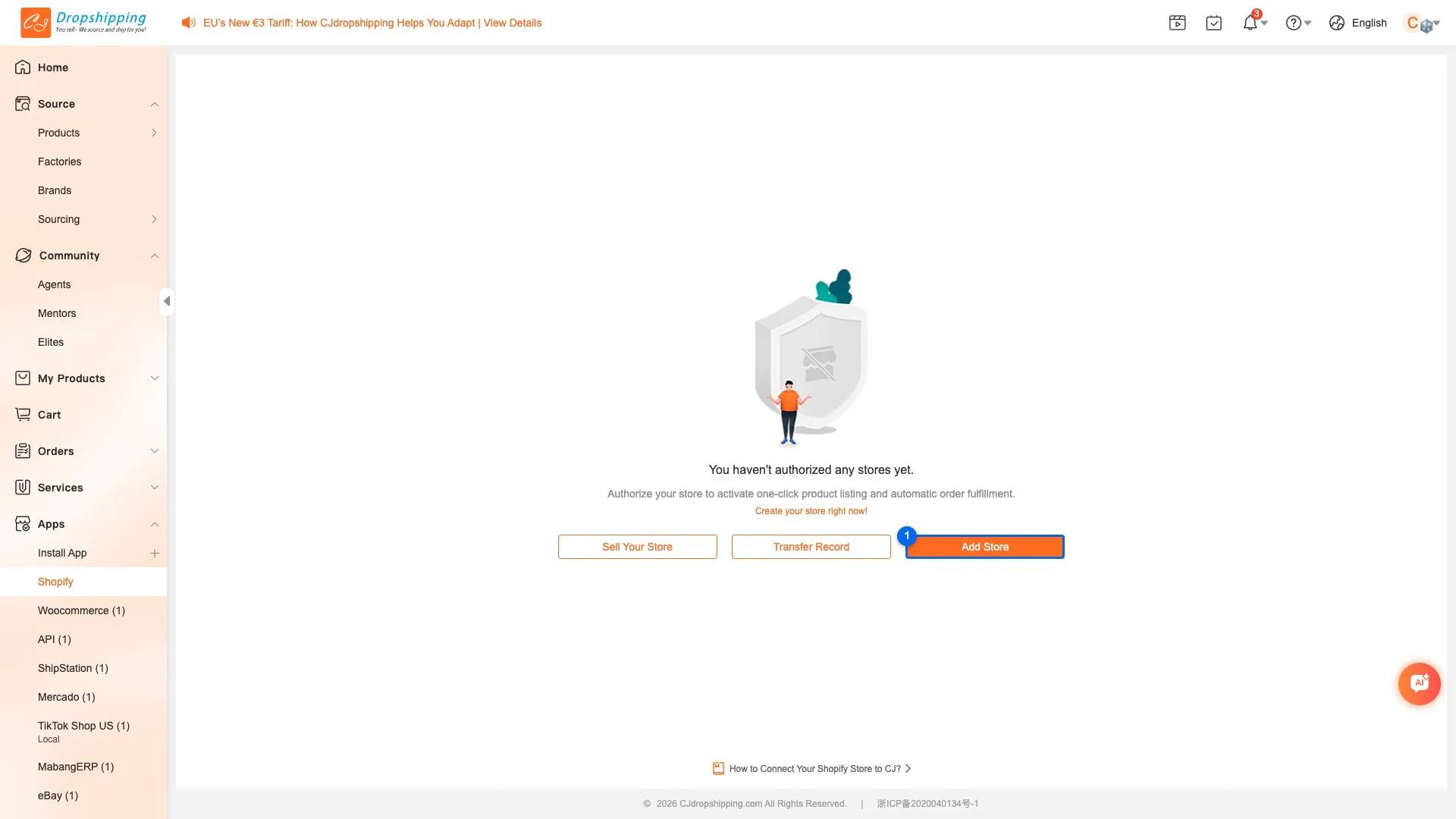
Step 1
1Add Store — click to begin the Shopify binding flow— Clicking this opens the Shopify Authorization confirmation popup
Step 2Authorization Popup

A Shopify Authorization dialog appears. Review the authorization prompt, then click Authorize to be redirected to Shopify to install the CJ app.
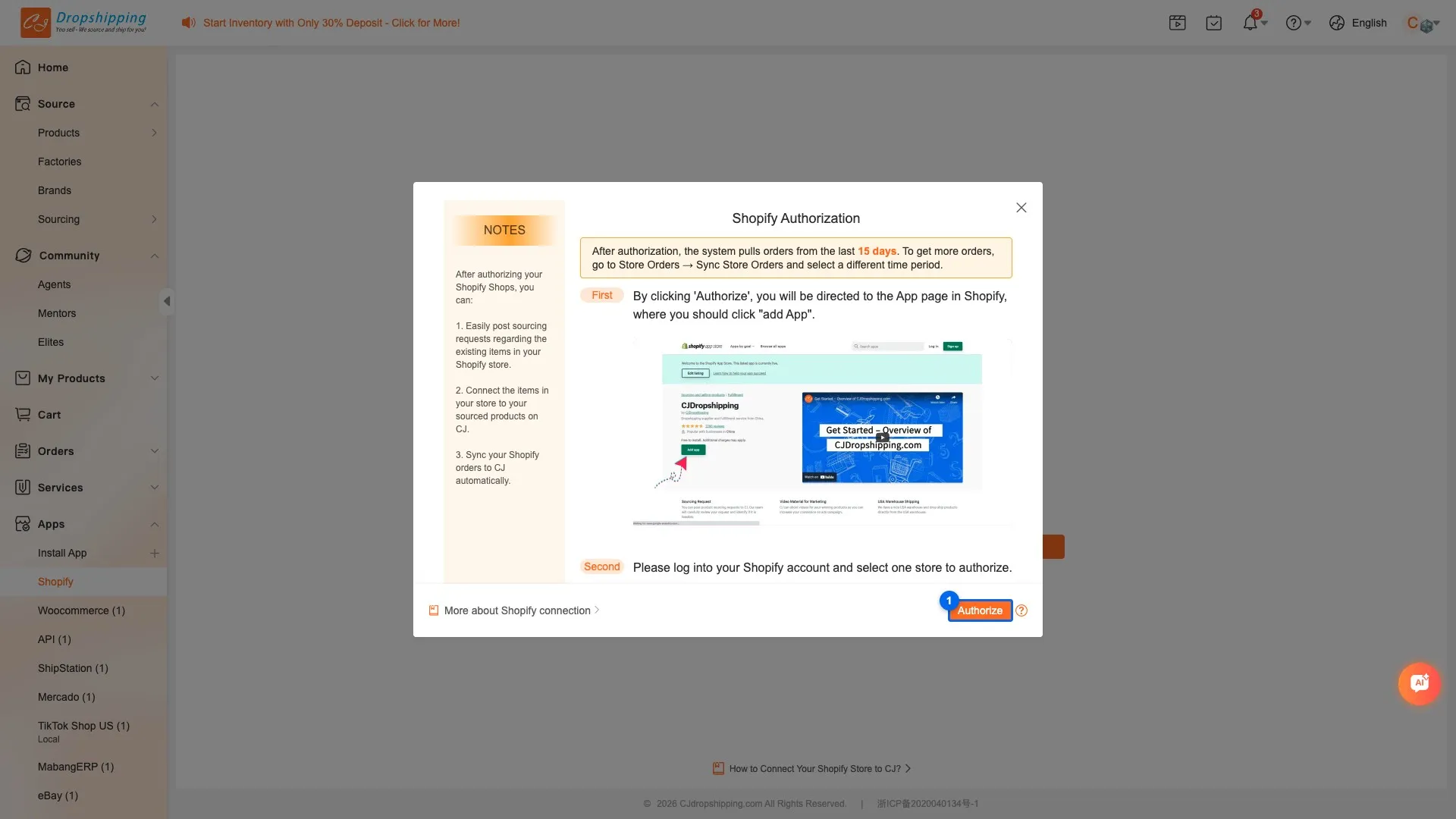
Step 2
1Authorize — confirm and redirect to Shopify App Store— Clicking this takes you to the Shopify App Store to install the CJ Dropshipping app
Step 3Shopify App Install

You are redirected to the Shopify App Store page for CJ Dropshipping. Make sure you are logged in to your Shopify account. Click Install on the left panel to proceed with the installation.
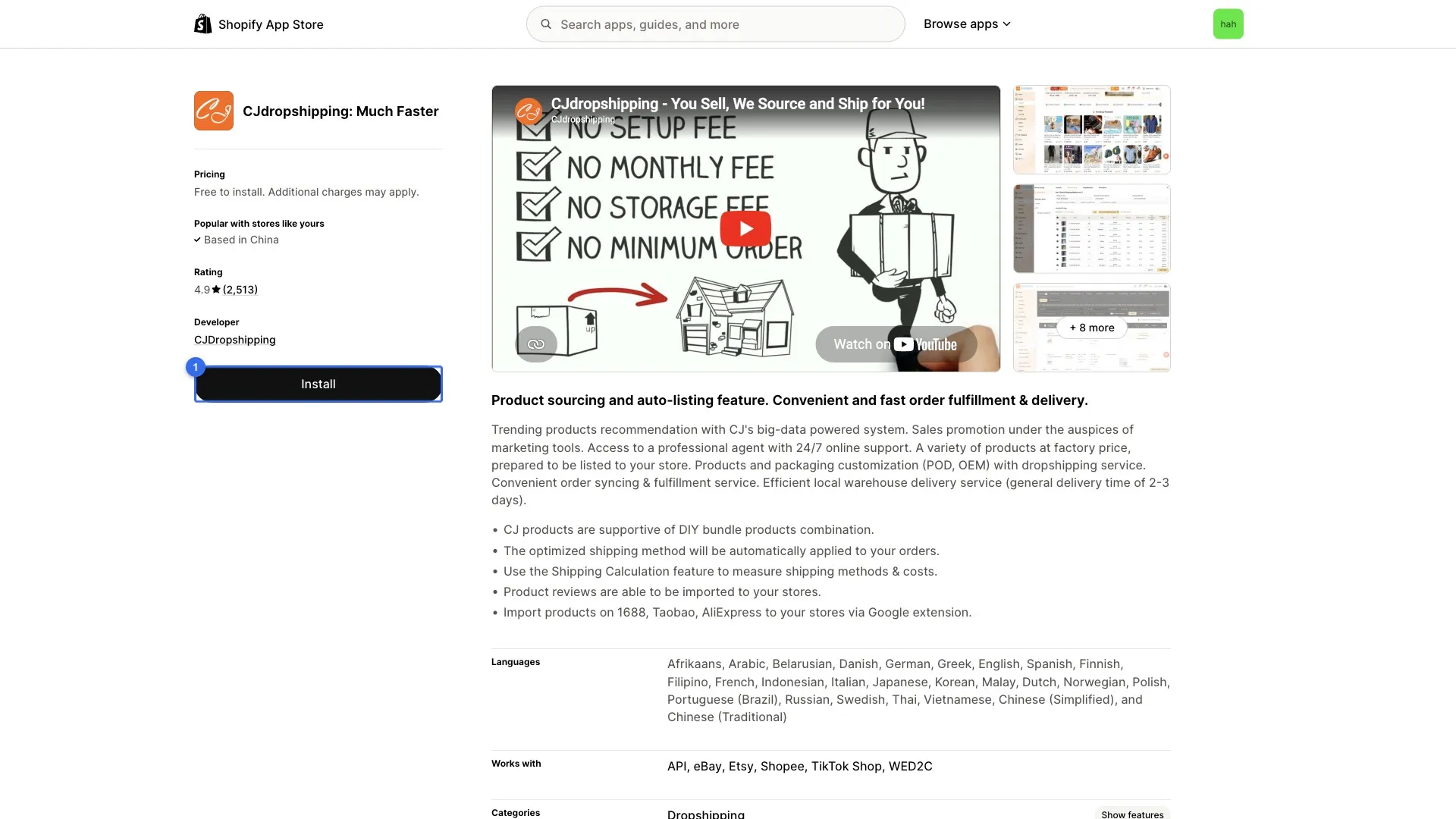
Step 3
1Install — begin installing the CJ app on your Shopify store— Appears on the left panel after the Shopify App Store page loads; requires Shopify login
Step 4Install Confirmation

Shopify shows the app installation confirmation page listing the permissions CJ Dropshipping needs. Review the listed permissions, then click Install app to grant access and complete the installation.
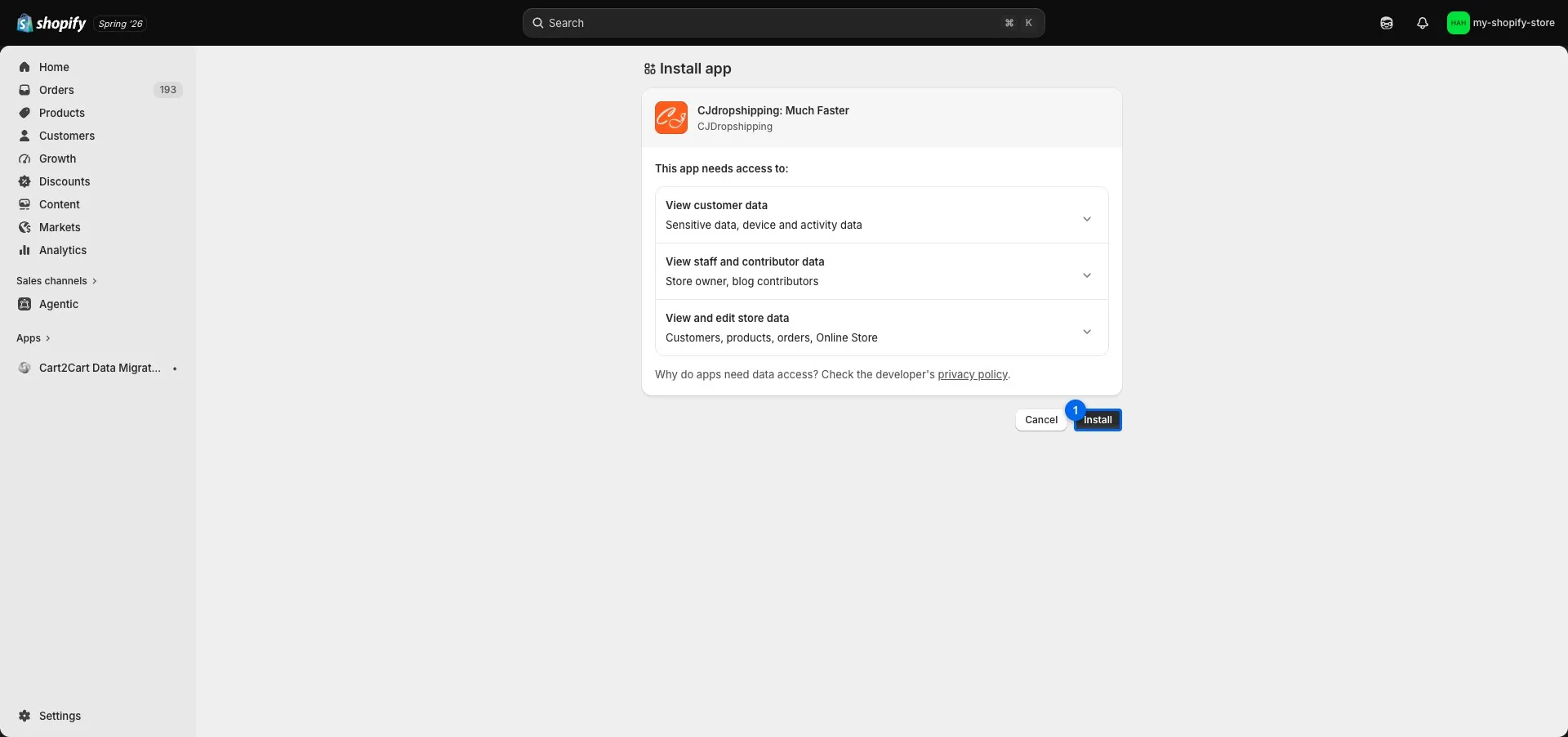
Step 4
1Install app — confirm permissions and complete installation— Grants CJ the necessary Shopify API permissions to manage listings and orders
Step 5CJ Account Authorization

After installation, CJ shows a store authorization page with your logged-in CJ account. Check the Please read and agree checkbox to accept the Store Authorization Agreement, then click Authorize to complete the link.
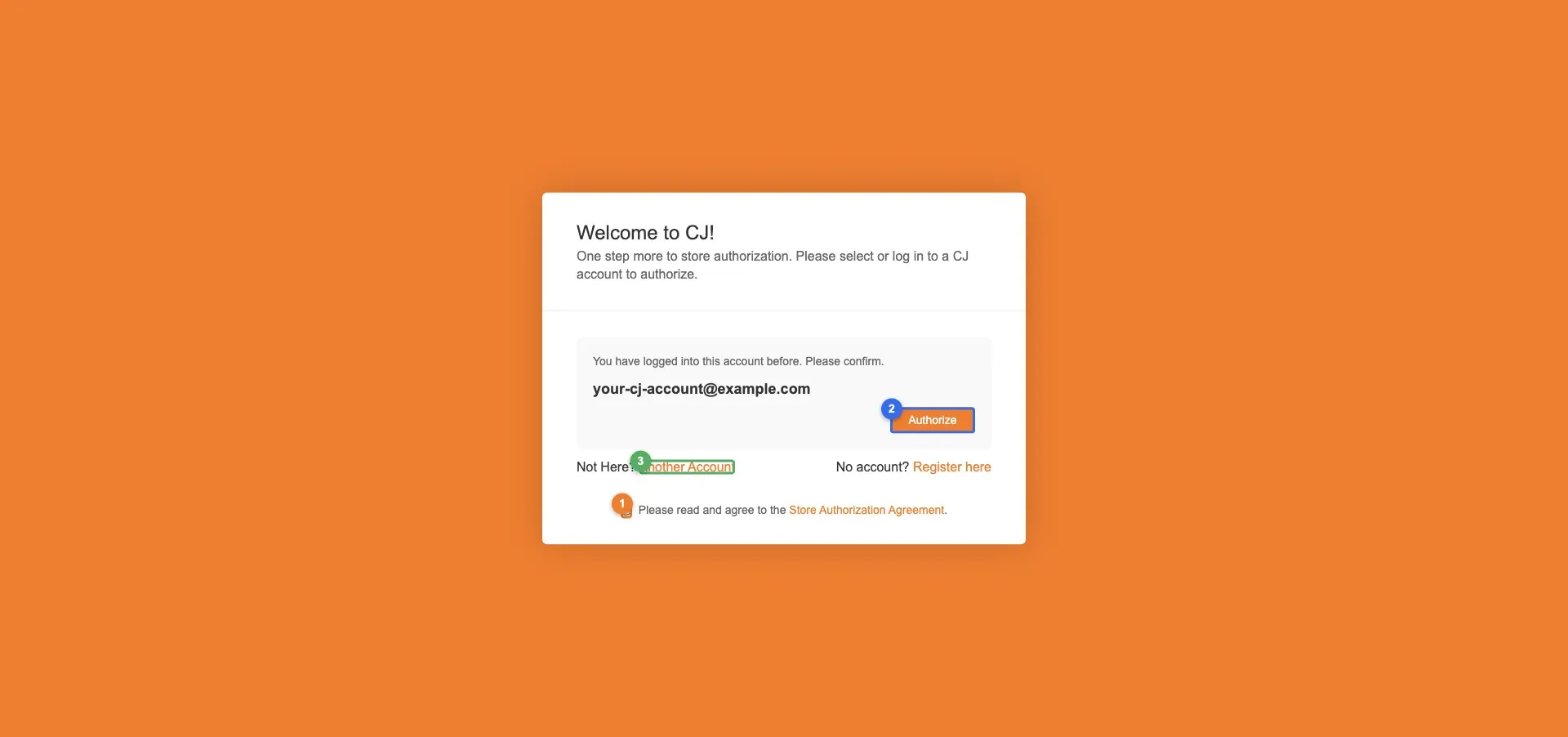
Step 5
1Terms checkbox — must be checked before authorizing— Check this to agree to the Store Authorization Agreement
2Authorize — complete linking this CJ account to Shopify— Confirms the authorization and redirects back to CJ
3Another Account — use a different CJ account— Click if the displayed account is not the one you want to link
Step 6Authorization Success

After clicking Authorize, CJ redirects you to the authorization success page. This confirms your Shopify store has been successfully linked to CJ.
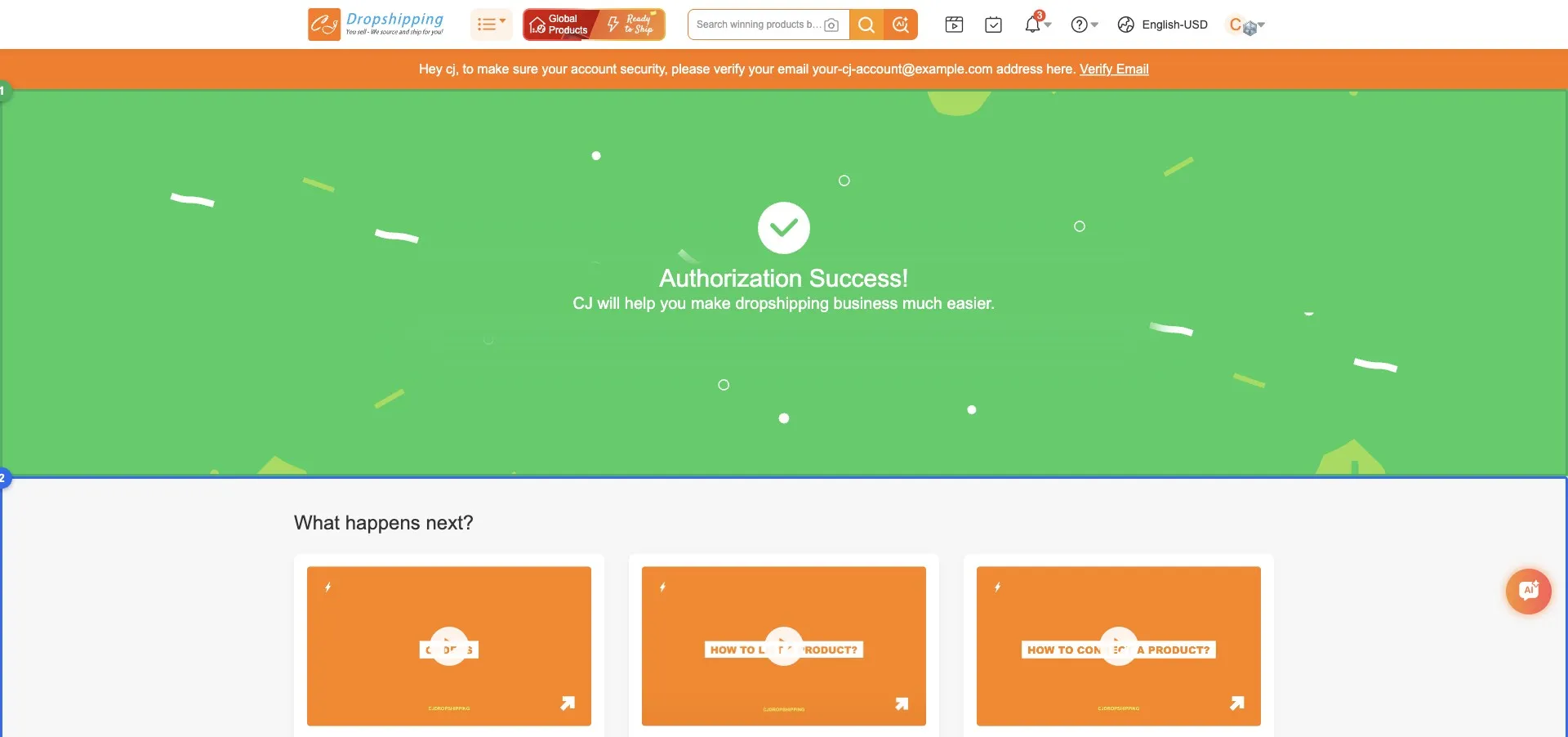
Step 6
1Authorization success indicator— Confirms the Shopify store authorization was completed successfully
2What happens next— Cards showing the next steps CJ will perform after your store is connected
Step 7Verifying Store Connection

Navigate back to Apps → Shopify in the CJ sidebar. Your store now appears in the connected stores list with status Activated. The binding is complete — you can now use CJ's listing and order sync features.
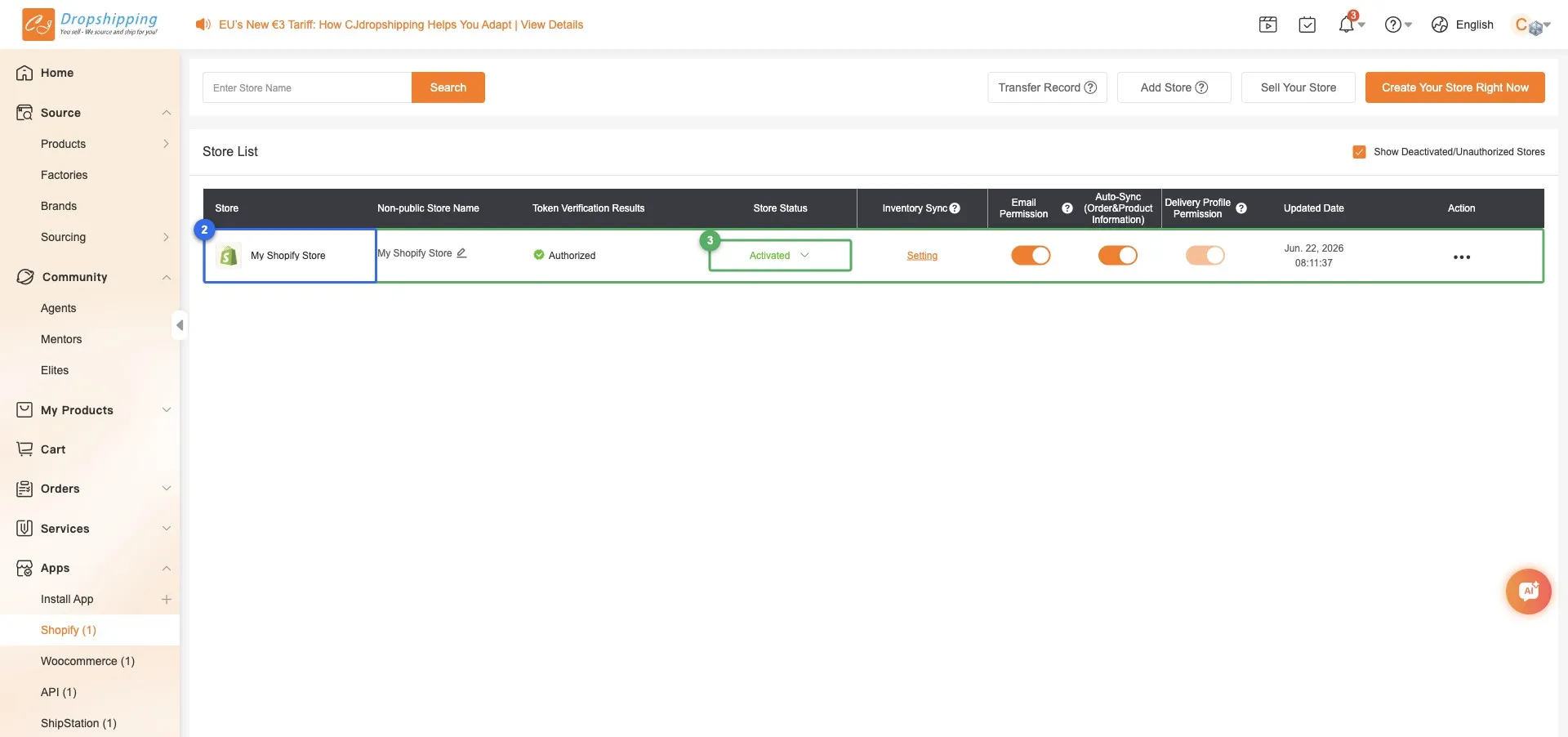
Step 7
1Connected store row — binding successful— The store row appears after successful Shopify authorization
2Store name — your connected Shopify store— Displays the store name used during Shopify authorization
3Status: Activated— Green status confirms the store is live and ready for listing and order sync

Related Questions

QWhere do I start the Shopify store binding process in CJ?
Go to Apps → Shopify in the left sidebar of CJ. If no stores are connected yet, you'll see an empty page with an Add Store button. Click it to begin.
QHow do I install the CJ app from Shopify App Store?
After clicking Add Store and confirming in the CJ popup, you'll be redirected to the Shopify App Store. Click Install on the left panel, then confirm on the next page by clicking Install app.
QHow do I authorize my CJ account to link with Shopify?
After installing the app, CJ shows a confirmation page with your logged-in CJ account. Check the Please read and agree checkbox, then click Authorize to complete the link.
QHow do I verify that my Shopify store is successfully connected?
After authorization, CJ shows a success page. Navigate back to Apps → Shopify — your store appears in the list with status Activated.
QThe CJ app was added to Shopify but I was not redirected back — what should I do?
This can happen if the redirect flow was interrupted. Go to your Shopify Admin, search for the CJ Dropshipping app, and open it to log in to CJ directly from there.
QMy Shopify store is already connected to another CJ account — how do I link it to my current account?
Log into the Shopify account that was previously connected to CJ and disconnect it first. Alternatively, use the Store Transfer feature in CJ to transfer the store to your current account.
