${item.title}
${item.title} ${item.afterBtn.text}
${item.text}
${item.title}
${item.afterBtn.text}

${articleTitle}

How to Connect eBay with CJ?

47135 4 mins article
Date Created: Dec. 29, 2020 19:05:55 Last Edited: Jun. 22, 2026 10:18:15

Connecting your eBay store to CJdropshipping lets you list products and automate order fulfillment directly through CJ.

Steps Overview

1
eBay App Installation
 
2
Initiating Store Authorization
 
3
Granting eBay Access
 
4
Confirming the Authorization
 
5
Verifying Store Connection
Step 1eBay App Installation

Log in to CJdropshipping. In the left sidebar click Apps, then click Install App to open the app marketplace. Scroll to the Cross-Border E-commerce Platform section, find eBay and click the download icon on its card. Wait for installation to complete — eBay will then appear in the sidebar under Apps.
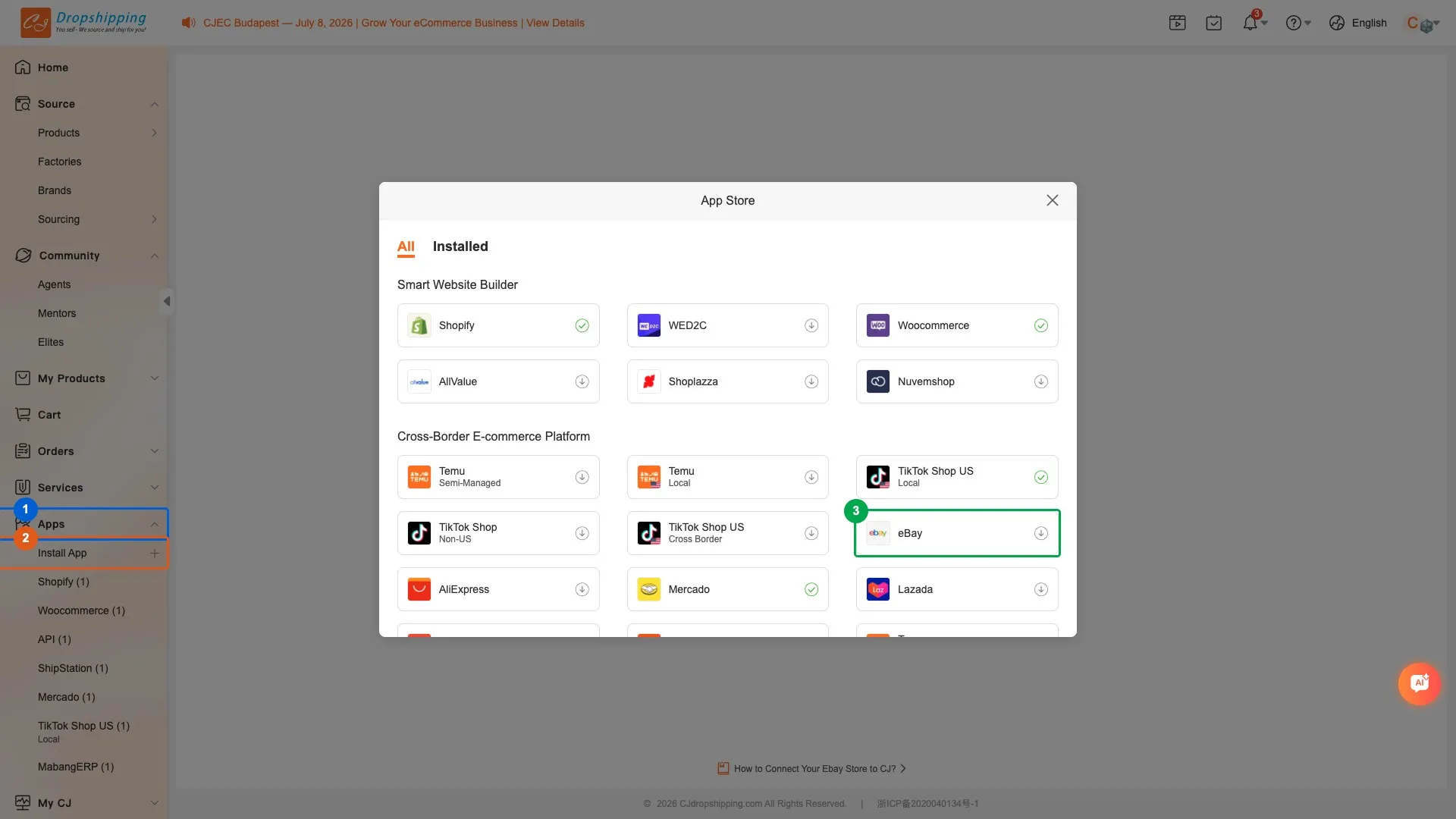
Note: If eBay already appears in your left sidebar under Apps, it has been installed previously. You can skip this step and go directly to Step 2 to connect your store.
Step 1
1Apps — left sidebar entry to app management— Click to expand the Apps section
2Install App — opens the app marketplace popup— Find eBay in the Cross-Border E-commerce Platform section here
3eBay app install icon— Click the download icon to install eBay
Step 2Initiating Store Authorization

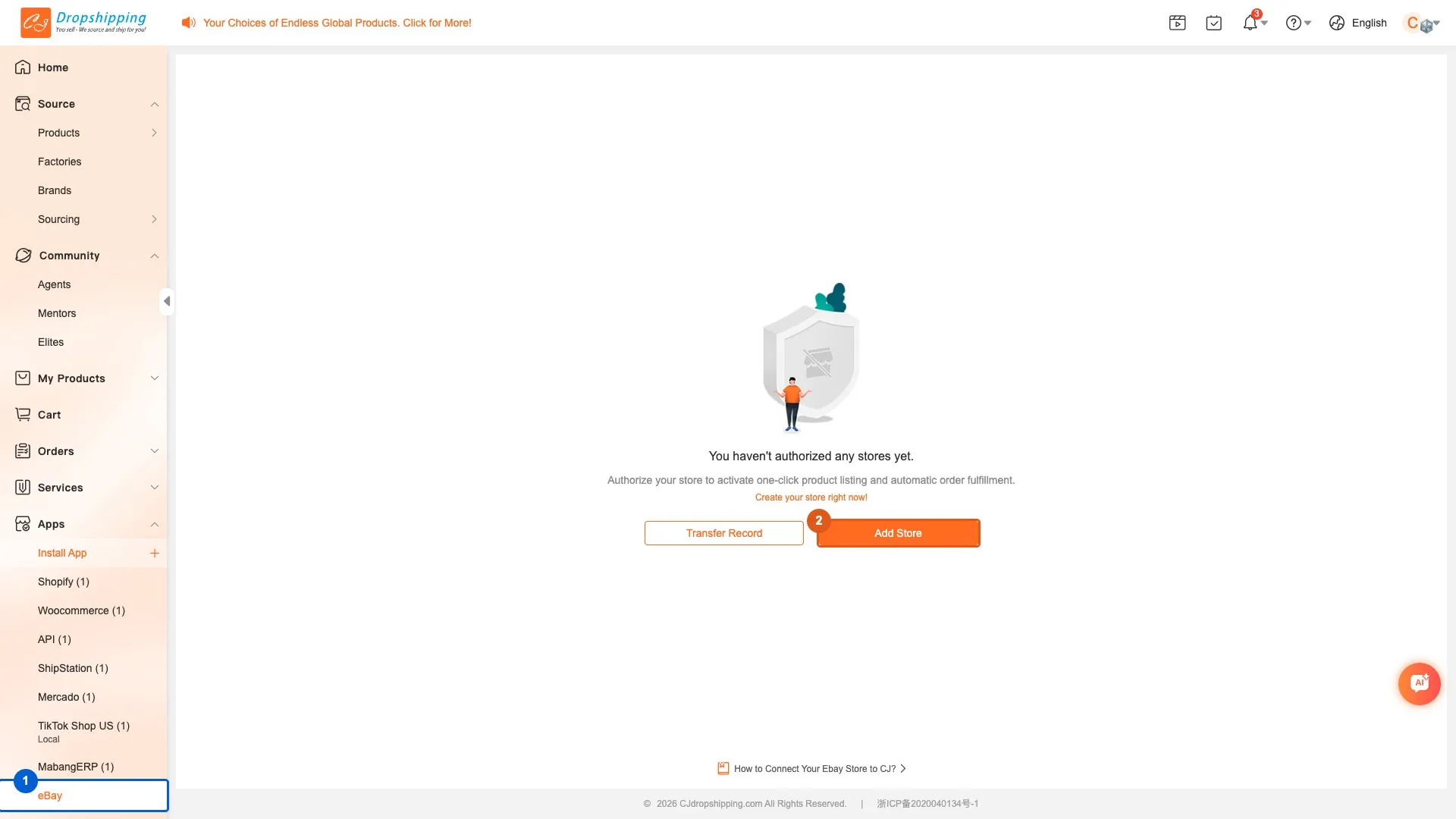
After installation, click Apps → eBay in the left sidebar. The page shows the eBay store management view. Since no stores are connected yet, click Add Store to start the eBay authorization. CJ will redirect you to eBay — if you are not already signed in to eBay, you will see eBay's login page first.
Step 2
1eBay — left sidebar entry— Navigate here after installing eBay from Install App
2Add Store— Click to begin the eBay store authorization process
Step 3Granting eBay Access

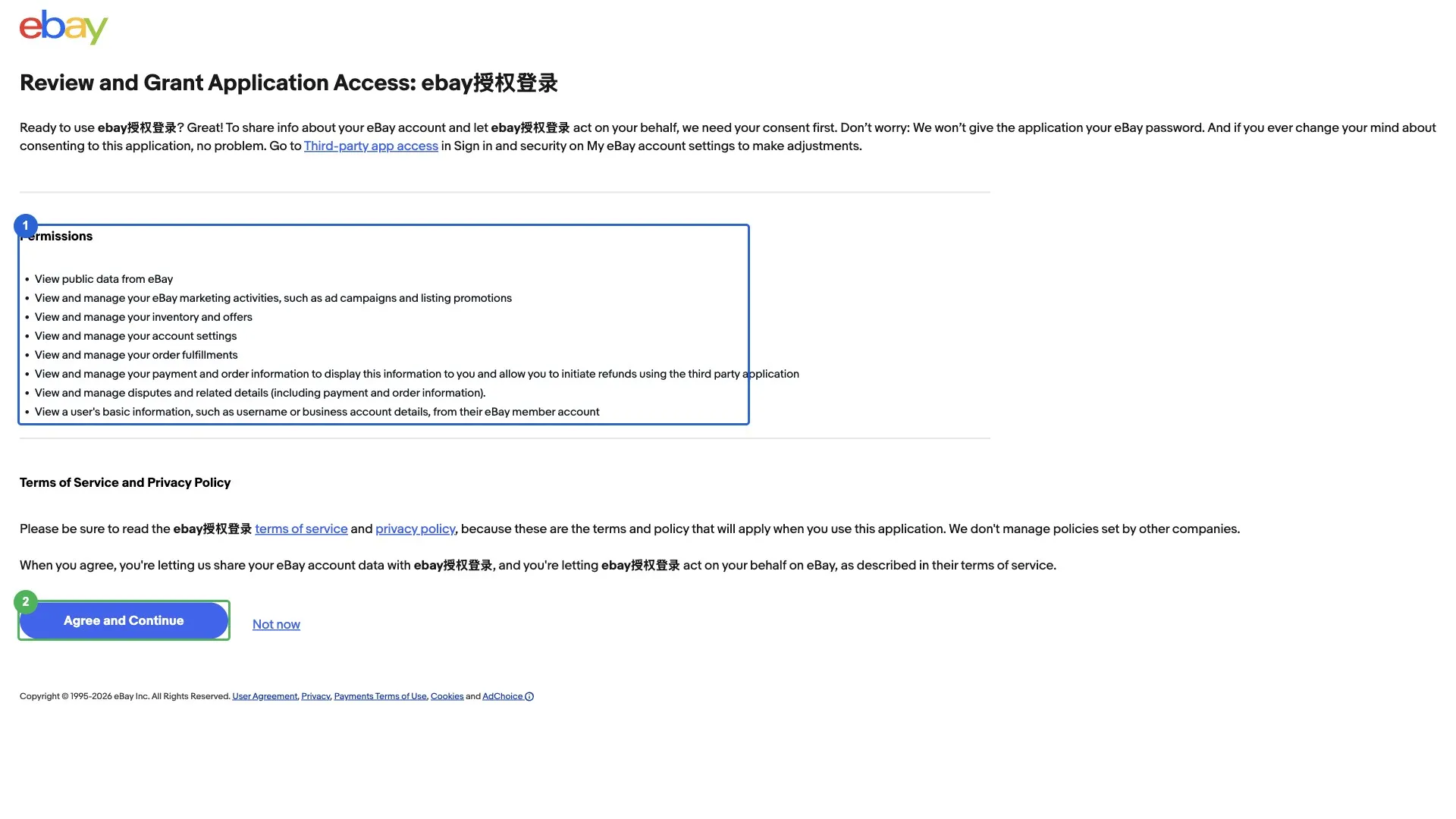
After signing in to eBay (or if you were already signed in), eBay displays a permission confirmation page listing the access CJ Dropshipping is requesting. Review the permissions, then click I agree to grant authorization. You will be redirected back to CJ automatically.
Step 3
1Permissions list— Review the access permissions CJ Dropshipping is requesting on your eBay account
2I agree— Click to grant authorization — you will be redirected back to CJ
Step 4Confirming the Authorization

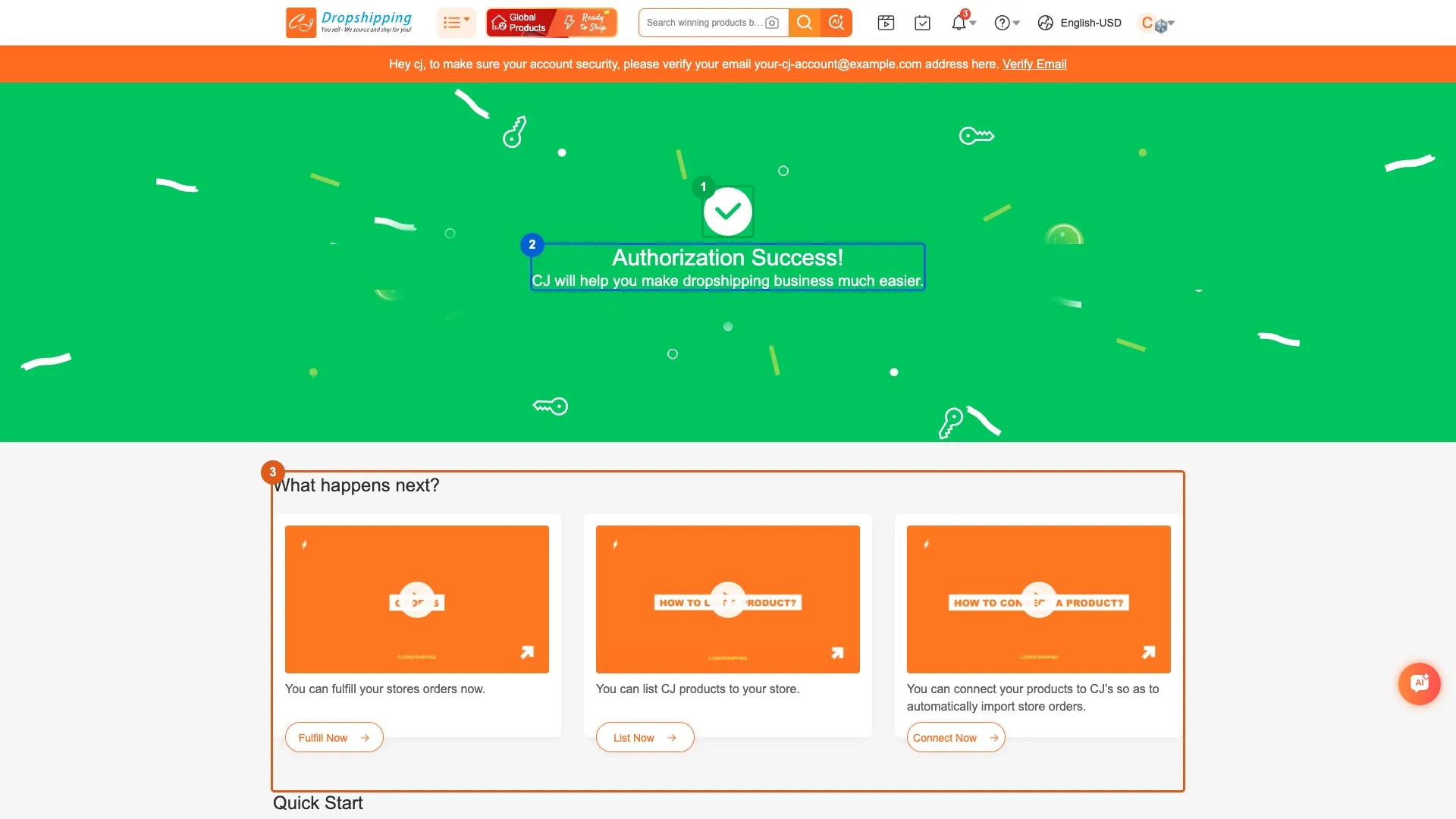
After clicking I agree on eBay, you are redirected back to CJdropshipping. A success confirmation page appears, indicating that your eBay store has been authorized.
Step 4
1Success indicator— Confirms eBay store authorization was completed
2Authorization success message— CJ confirms the store is now connected
3What happens next?— Cards showing the next steps CJ will perform after your store is connected
Step 5Verifying Store Connection

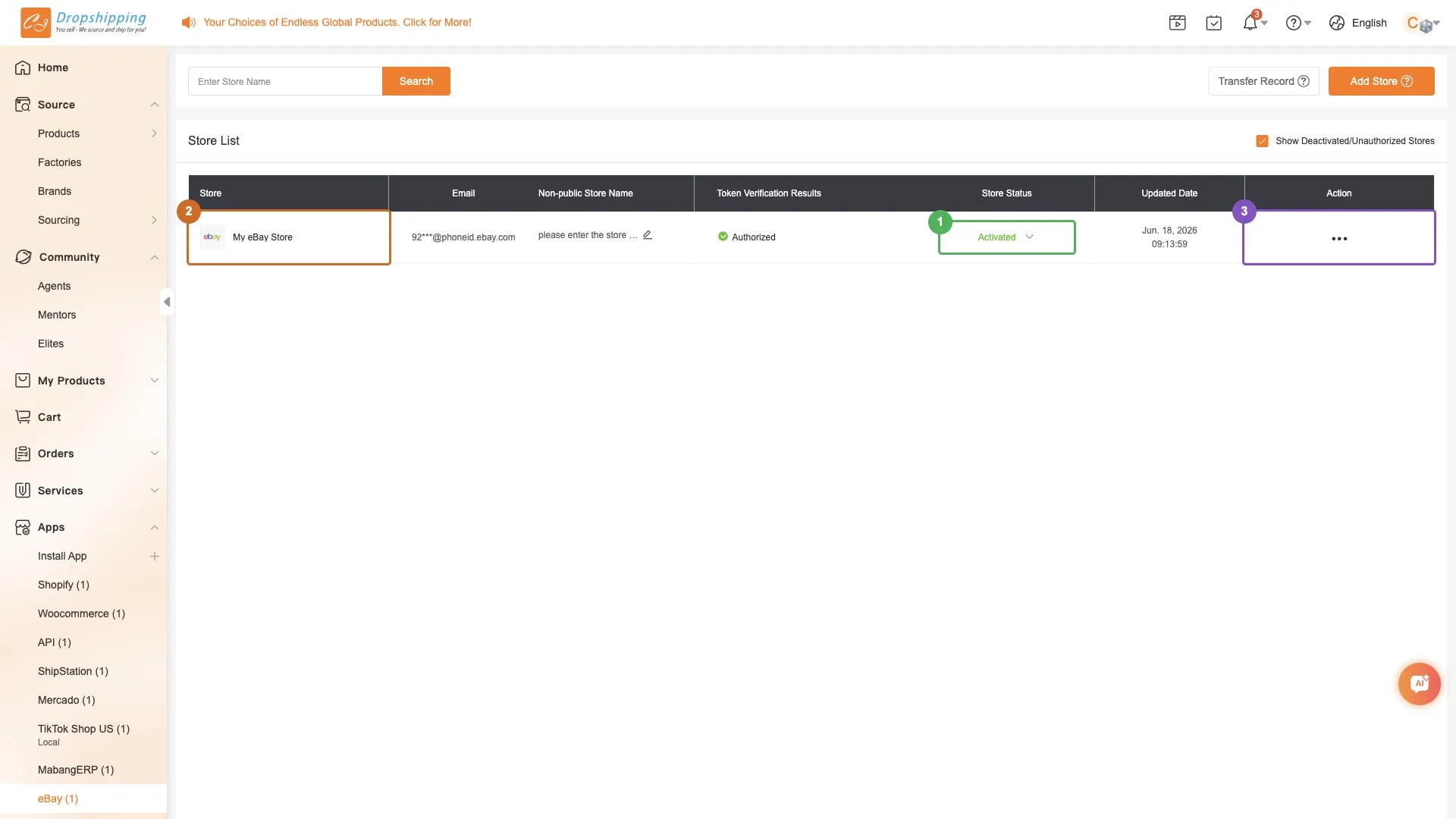
Navigate back to Apps → eBay to confirm the store appears in the list with status Activated. From here you can manage your eBay store settings, view store details, or add more eBay accounts.
Step 5
1Activated status— Green badge confirms the store is successfully connected
2Store name— Displays your eBay store name
3Store actions— Edit, delete, or manage store settings

Related Questions

QWhich URL should I navigate to for eBay authorization in CJ?
Navigate to Apps → eBay in the left sidebar. Make sure eBay is installed from Apps → Install App first.
QWill I be asked to log in to eBay?
If you are not already signed in to eBay in your browser, eBay will show a login page before the permission confirmation page. Enter your eBay username/email and password, then click Sign in to proceed.
QHow do I verify that my eBay store is successfully connected?
After authorization, CJ redirects you to a success page and your store appears in Apps → eBay with status Activated. If the status is 'Deactivated', try re-authorizing from the same page.
