Connecting your WooCommerce store to CJdropshipping with the Default method is the simplest way to list products and automate order fulfillment — CJ runs a WooCommerce authorization handshake using just your store URL, and you approve the connection on a WordPress page. No API keys or extra plugins are required.
Default method: CJ initiates a WooCommerce OAuth handshake using just your store URL. You'll be redirected to a WordPress authorization page to approve the connection — no API credentials needed.
Steps Overview
1
Log in to WordPress Admin
2
Verify WooCommerce is Active
3
Set Permalink to Post Name
4
WooCommerce App Installation
5
Open CJ's WooCommerce Page
6
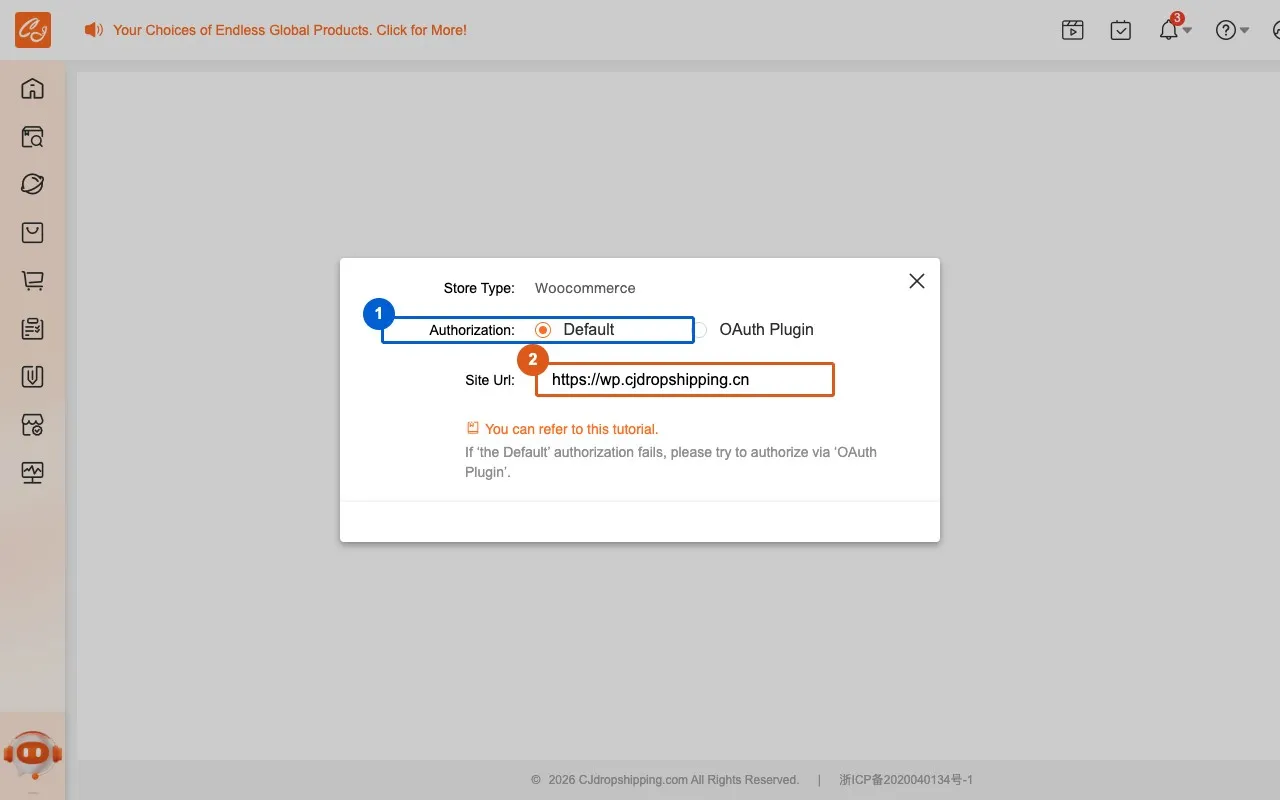
Add Store & Enter URL in CJ
7
Approve CJ Authorization in WordPress
8
Confirm Store Activation in CJ
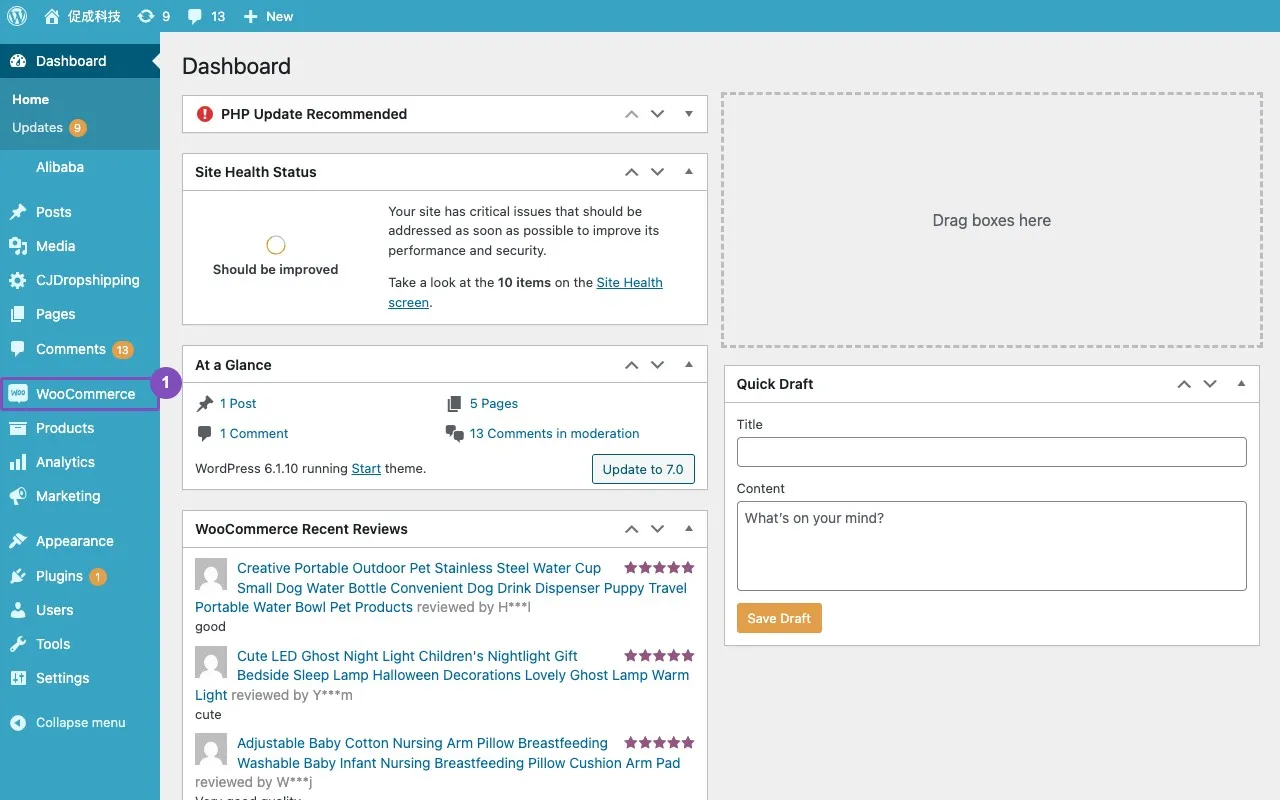
Step 1Log in to WordPress Admin
Log in to your WordPress/WooCommerce admin dashboard. Ensure the WooCommerce plugin is installed and activated — you should see WooCommerce in the left sidebar.
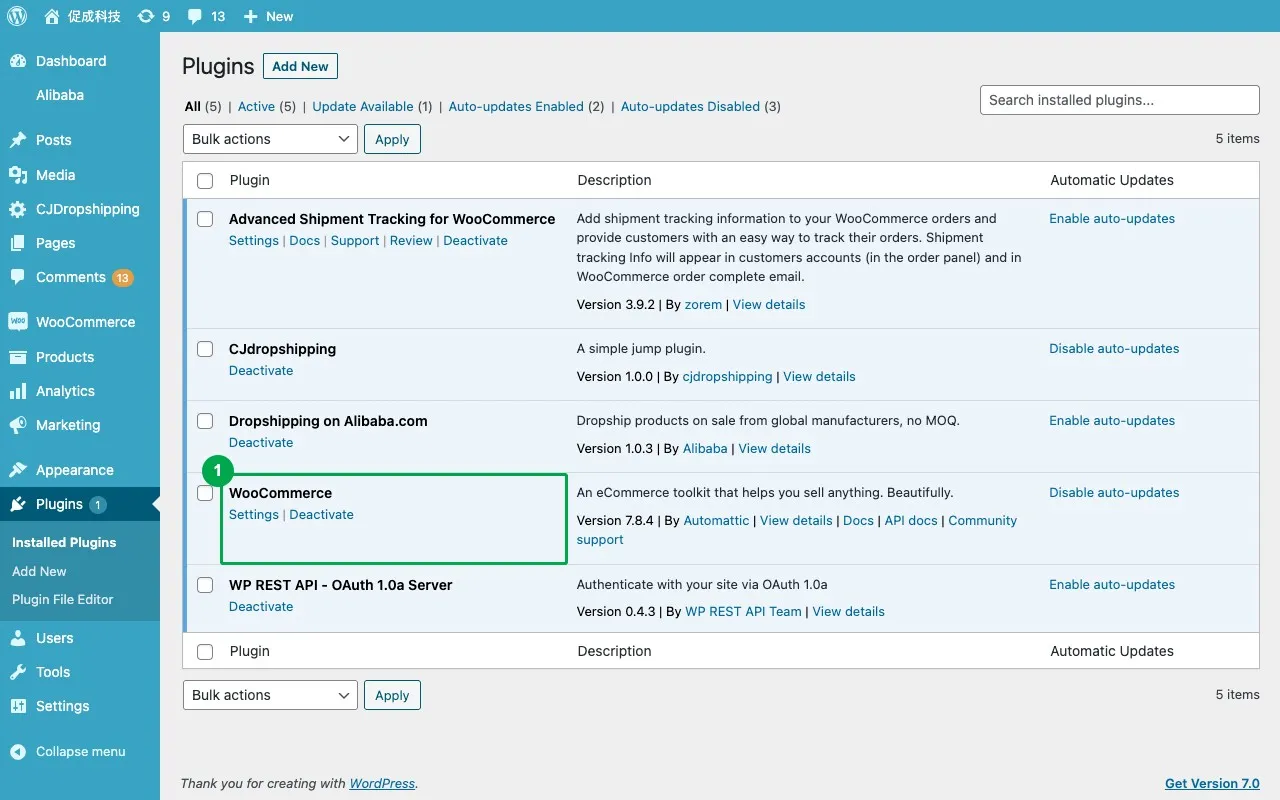
Step 2Verify WooCommerce is Active
Confirm WooCommerce is installed and activated. In the left sidebar, click Plugins — WooCommerce should appear in the list with status Active.
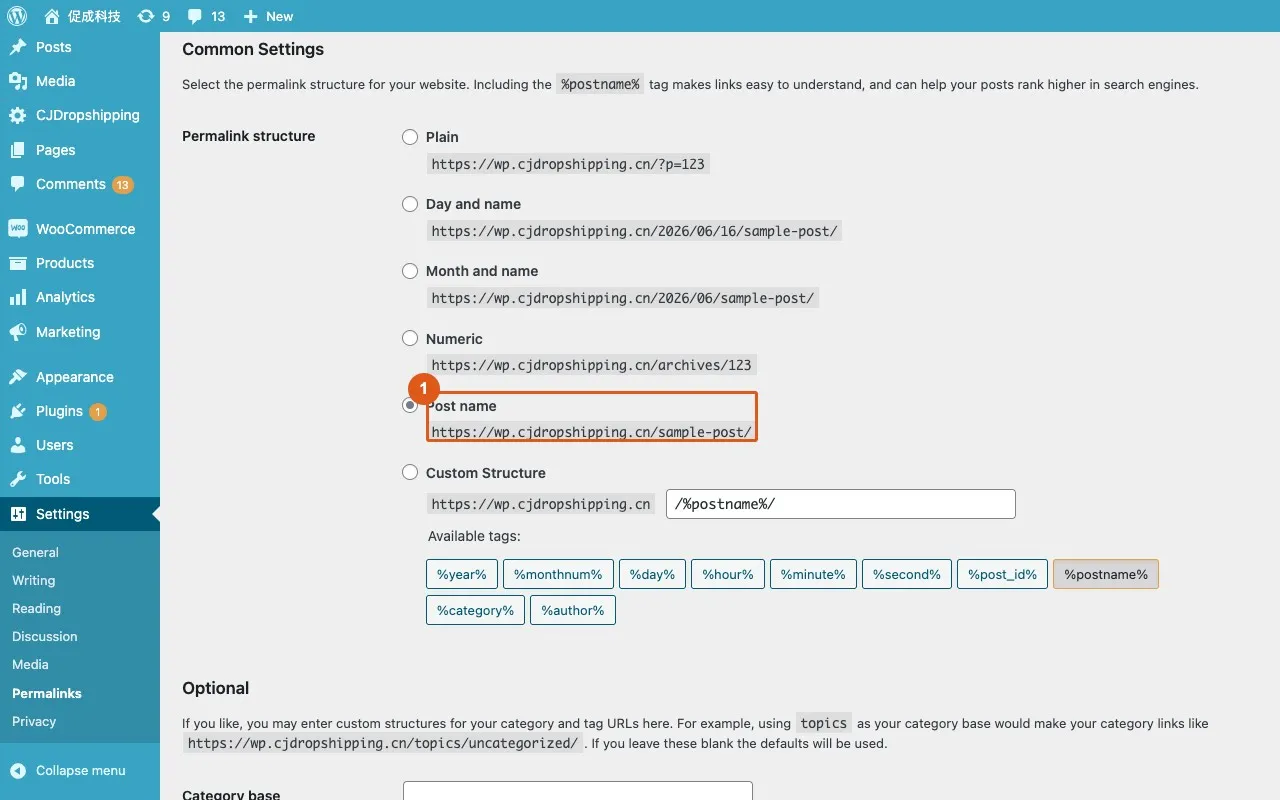
Step 3Set Permalink to Post Name Key Point
Go to Settings → Permalinks in WordPress. Select Post name as the permalink structure, then click Save Changes. This step is required for the WooCommerce REST API to work correctly.
Step 4WooCommerce App Installation
Log in to CJdropshipping. In the left sidebar click Apps, then click Install App to open the app marketplace. Scroll to the E-commerce Platform section, find WooCommerce and click the download icon on its card. Wait for installation to complete — WooCommerce will then appear in the sidebar under Apps.
Note: If WooCommerce already appears in your left sidebar under Apps, it has been installed previously. You can skip this step and go directly to Step 5 to connect your store.
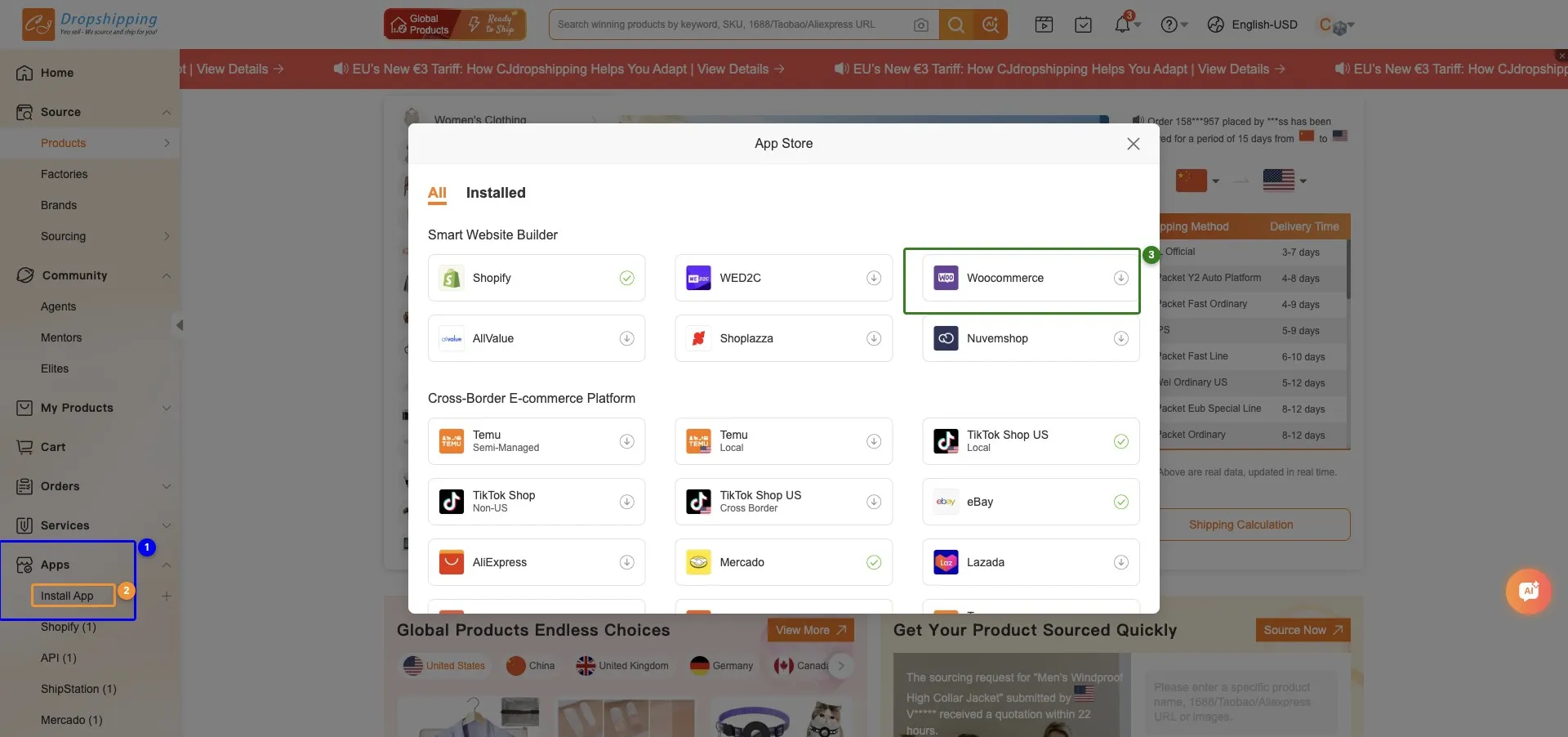
1Apps — left sidebar entry to app management— Click to expand the Apps section
2Install App — opens the app marketplace popup— Find WooCommerce in the E-commerce Platform section here
3WooCommerce app install icon— Click the download icon to install WooCommerce
Step 5Open CJ's WooCommerce Page
Log in to CJ Dropshipping. In the left sidebar, go to Apps → WooCommerce. If no stores are connected, you'll see an empty page with an Add Store button.
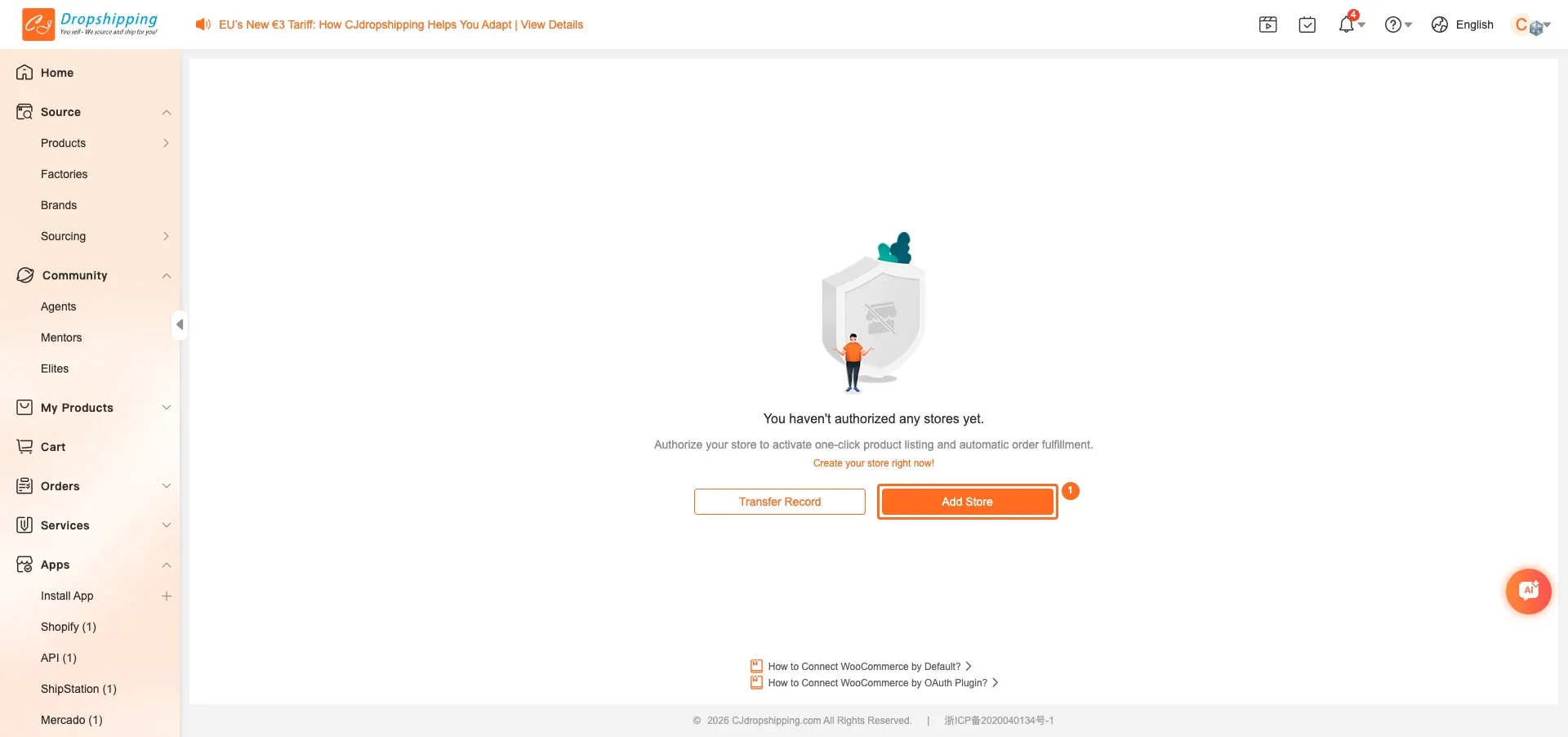
1Add Store — click to start connecting your WooCommerce store
Step 7Approve CJ Authorization in WordPress Key Point
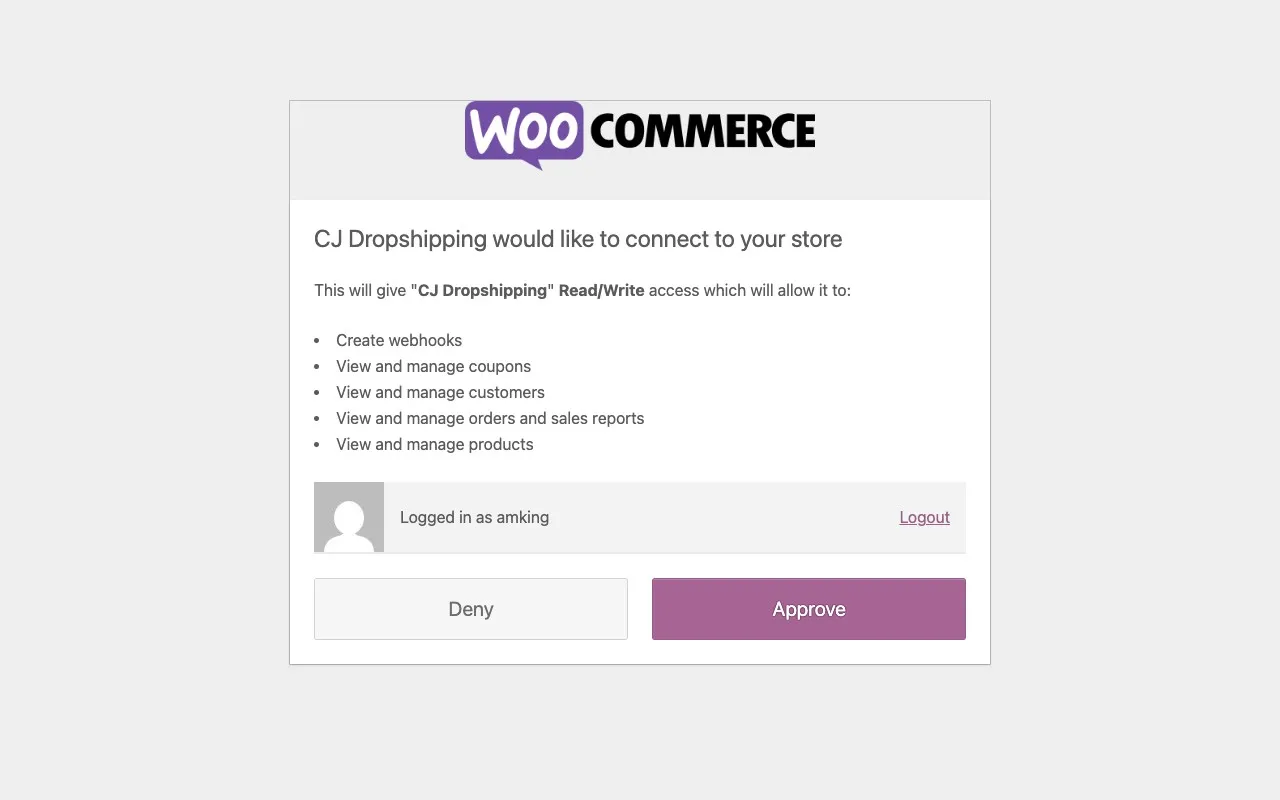
A WordPress OAuth page opens in your browser showing that CJ Dropshipping would like to connect to your store. Review the Read/Write permissions being requested — webhooks, coupons, customers, orders, and products. Click Approve to grant CJ access.
Step 8Confirm Store Activation in CJ Key Point
After approving, you are redirected back to CJ. Your WooCommerce store now appears in the Store List with Token Verification Results: Authorized and Store Status: Activated. The connection is complete — CJ can now sync products and orders with your WooCommerce store.
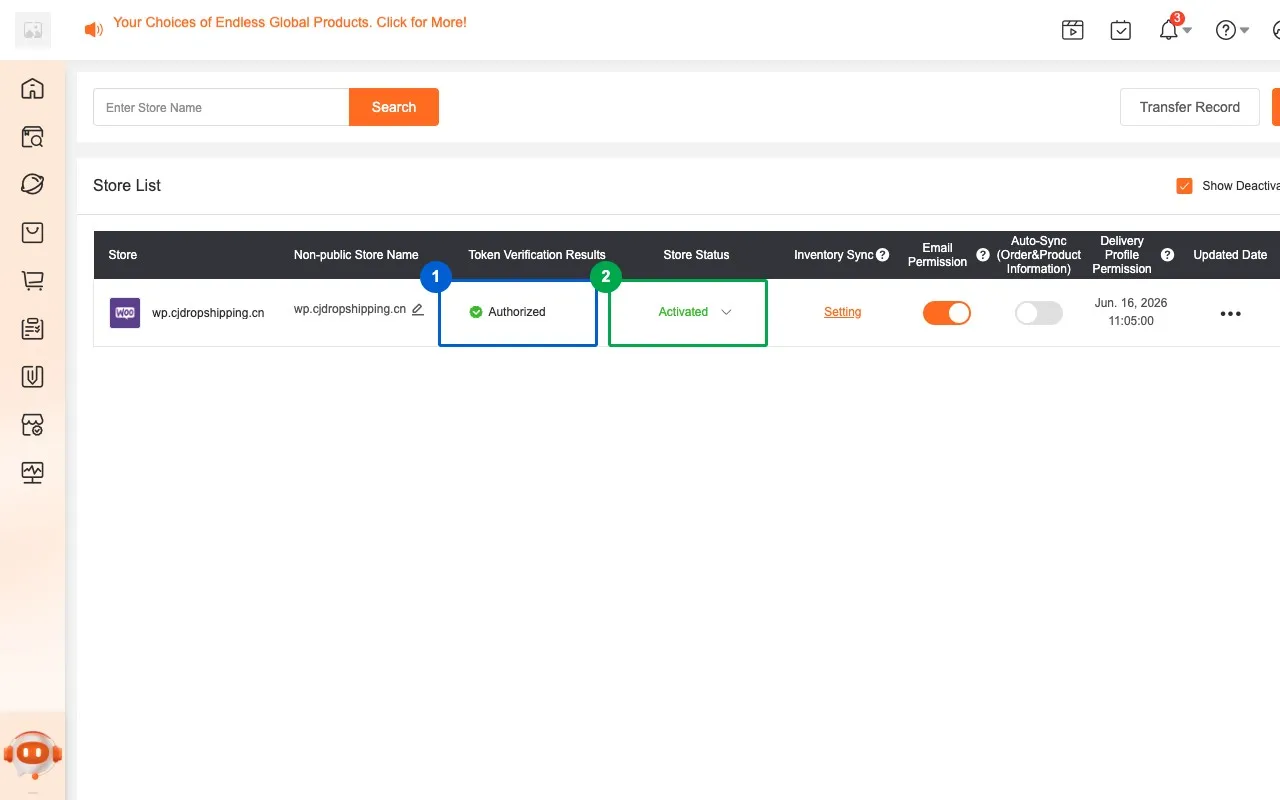
1Token Verification: Authorized
2Store Status: Activated
Related Questions
QWhat is the difference between the Default and OAuth Plugin methods?
The Default method only requires your store URL — CJ initiates a WooCommerce OAuth handshake and redirects you to WordPress to click Approve, with no API credentials needed. The OAuth Plugin method instead requires installing the WordPress REST API - OAuth 1.0a Server plugin and entering a Client Key & Client Secret in CJ; use it only when the Default handshake is blocked or fails.
QWhy do I need to set the WooCommerce Permalink to 'Post name'?
WooCommerce's REST API requires the Permalink structure to be set to Post name in WordPress Settings → Permalinks. Without this, API calls will fail because WordPress won't route REST API requests correctly.
QWhat permissions does CJ Dropshipping request on the WordPress authorization page?
CJ Dropshipping requests Read/Write access to your WooCommerce store, which allows it to: create webhooks, view and manage coupons, customers, orders and sales reports, and products. Review these permissions on the WordPress authorization page and click Approve to proceed.
QHow do I connect my WooCommerce store to CJ using the Default method?
In CJ, go to Apps → WooCommerce, click Add Store, select Default under Authorization, enter your store URL, and click Next. A WordPress OAuth page opens — click Approve to grant CJ access. After approval, your store appears in the list with status Activated.